Scan Business Cards to Google Contacts
Take a photo of a paper business card and Business Card Scanner to Contacts extracts the contact details and saves the person through your Android contacts, where they can appear in Google Contacts through your normal sync settings.
- Take a photo of the card
- AI extracts the contact details
- Saves through Android contacts
- Can appear in Google Contacts through sync
- No export or import workflow
How to Scan a Business Card to Google Contacts
Business Card Scanner to Contacts is built for the simple workflow most Android users actually want: take a photo of a card and turn it into a usable contact. Instead of storing scanned cards inside a separate app, it saves the person through your Android contacts so they can appear in Google Contacts through your normal sync settings.
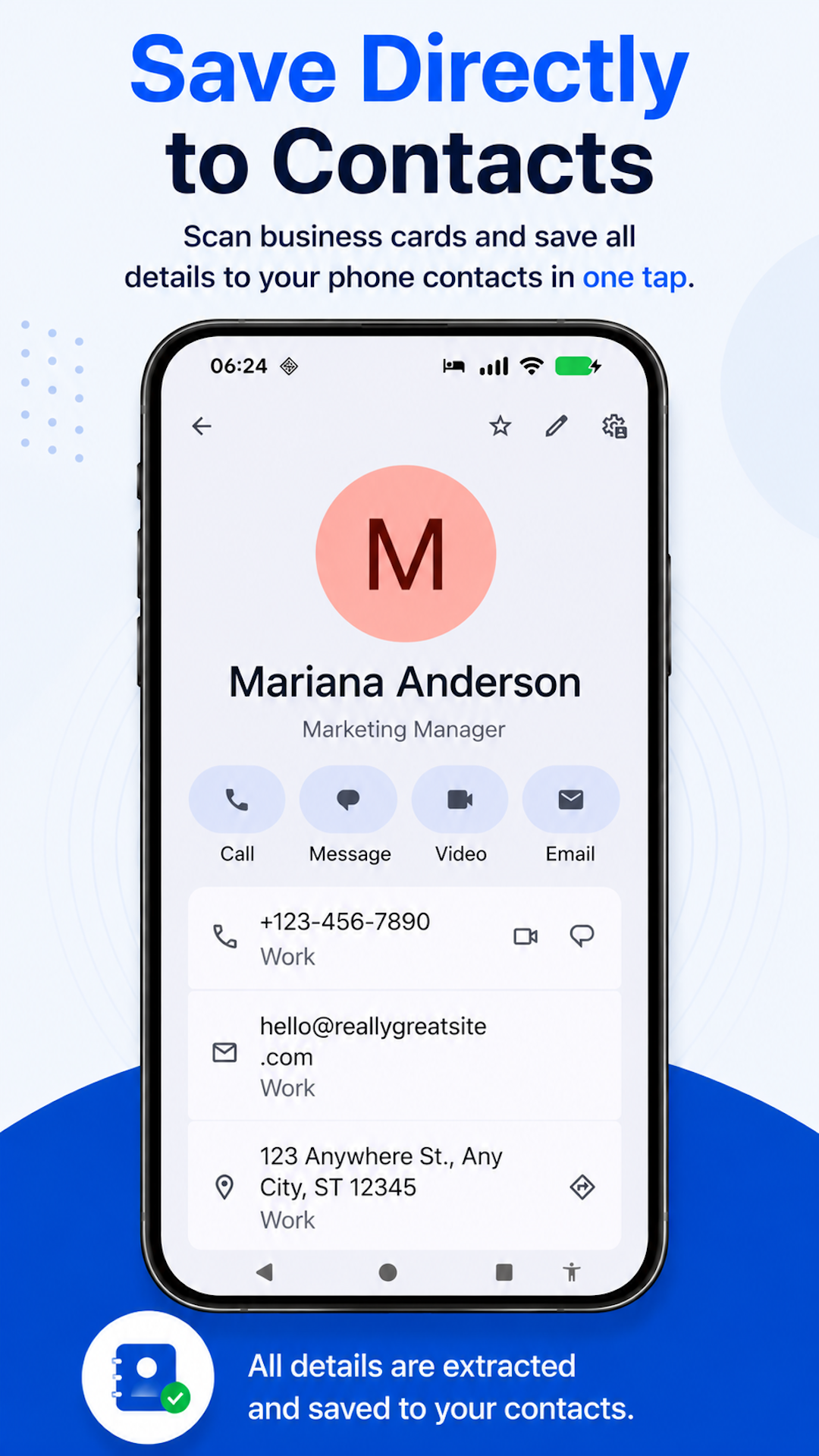
Take a photo
Open the app and capture the paper business card.
Contact details are extracted
The app reads common card details such as name, company, title, phone numbers, email addresses, websites, and street addresses.
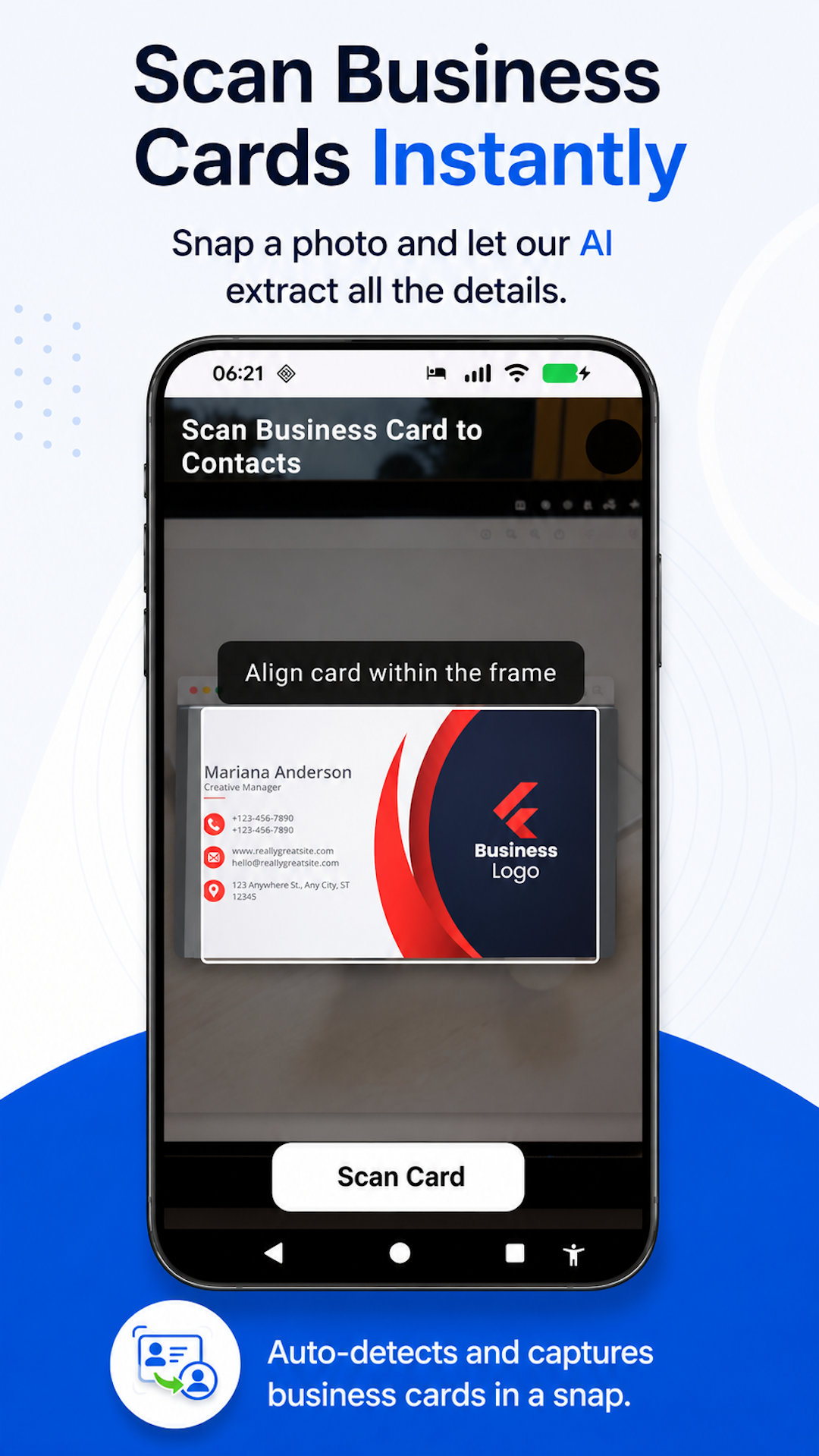
Saved through Android contacts
The contact is saved to your Android address book, where it can sync with Google Contacts depending on your device settings.
No Exporting Contacts From One App to Another
Many business card scanners create a separate database first, then make you export or sync later. Business Card Scanner to Contacts avoids that extra workflow. It is designed to save scanned business cards as real contacts in the address book you already use.
- No CSV export
- No spreadsheet cleanup
- No app-only contact vault
- No proprietary contact database
- No CRM setup
What Details Can Be Saved?
- Name
- Company
- Job title
- Phone numbers
- Email addresses
- Websites
- Street addresses
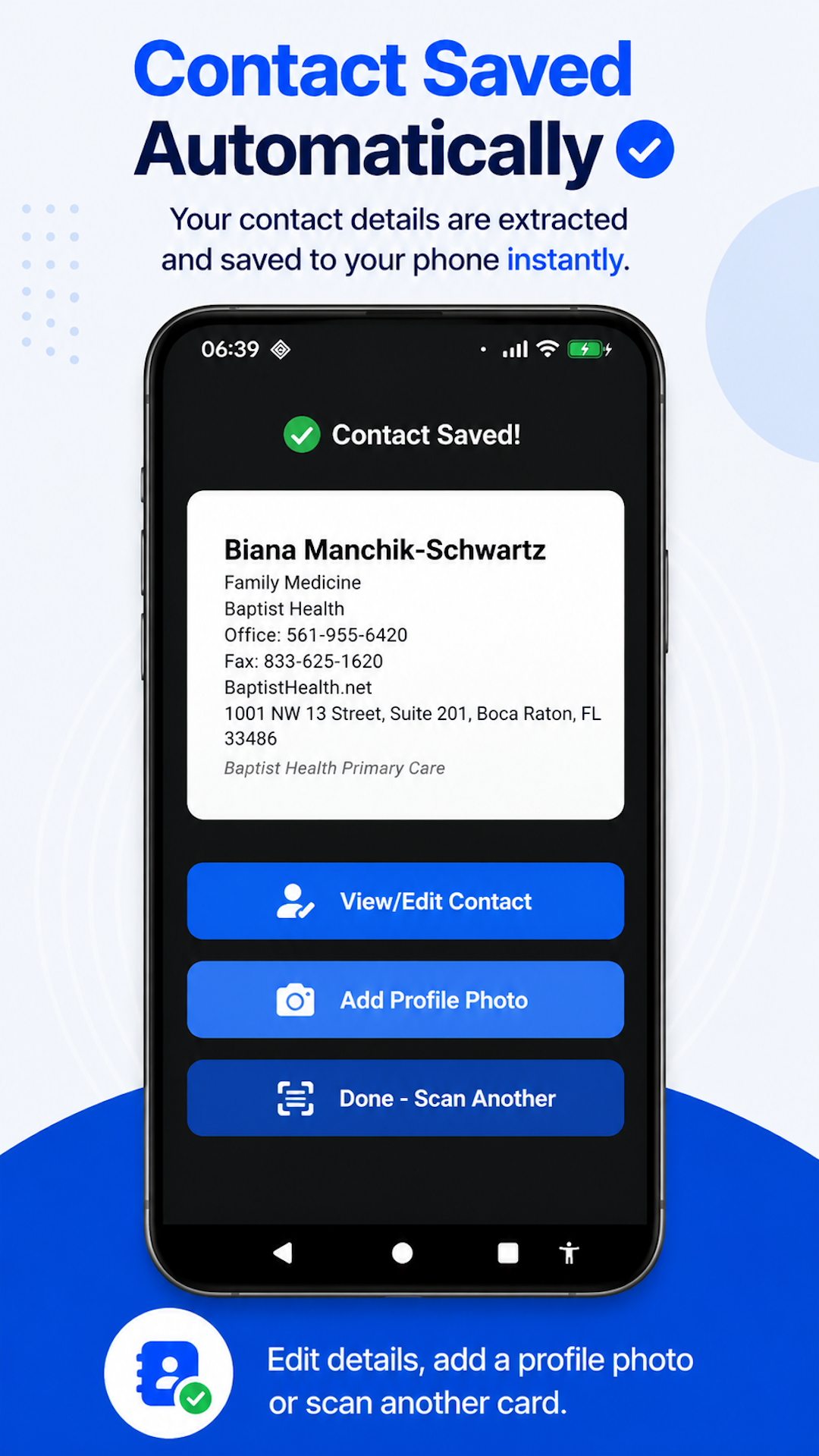
After the contact is saved, you can edit the details or add a profile photo if needed. The person stays in your Android phone contacts alongside everyone else you already know.
What Is the Easiest Way to Scan a Business Card to Google Contacts?
The easiest way to scan a business card to Google Contacts on Android is to use a business card scanner that saves through your Android contacts. Business Card Scanner to Contacts lets you take a photo of the card, extracts the contact details, and saves the person to your address book so the contact can appear in Google Contacts through your normal sync settings.
Built for Real Networking
- Conferences
- Sales meetings
- Recruiting events
- Real estate showings
- Consulting meetings
- Small business networking
Related Business Card Scanner Guides
Frequently Asked Questions
- Can I scan a business card to Google Contacts?
- Yes. Business Card Scanner to Contacts saves scanned business cards through your Android contacts, where they can appear in Google Contacts through your normal Android sync settings.
- Does the app save directly to a separate contact vault?
- No. It is designed to save contacts through your existing Android address book instead of trapping them inside a separate app-only database.
- Do I need to export contacts?
- No. The app avoids the export/import workflow by saving contacts through Android contacts.
- Can I edit the contact after scanning?
- Yes. After the business card is saved as a contact, you can edit details or add a profile photo.
- What details can the app extract?
- It can extract common business card details such as name, company, job title, phone numbers, email addresses, websites, and street addresses.
- Is this for Android only?
- Yes. Business Card Scanner to Contacts is built for Android.
Turn the Next Business Card Into a Google Contact
Take a photo of the card and save the person through your Android contacts — no account, subscription, contact vault, or export process.
Built for Android. No account required. No subscription.
Back to Business Card Scanner to Contacts.