Turn Business Cards Into Google Contacts
Take a photo of a paper business card and Business Card Scanner Phone uses AI to extract the details and save the person through your Android contacts, where they can appear in Google Contacts through your normal sync settings. No account, no subscription, no contact vault, no export cleanup.
- AI scans the card
- Saves to Google Contacts
- No account required
- No subscription
Your contacts belong in your phone — not trapped inside another app.
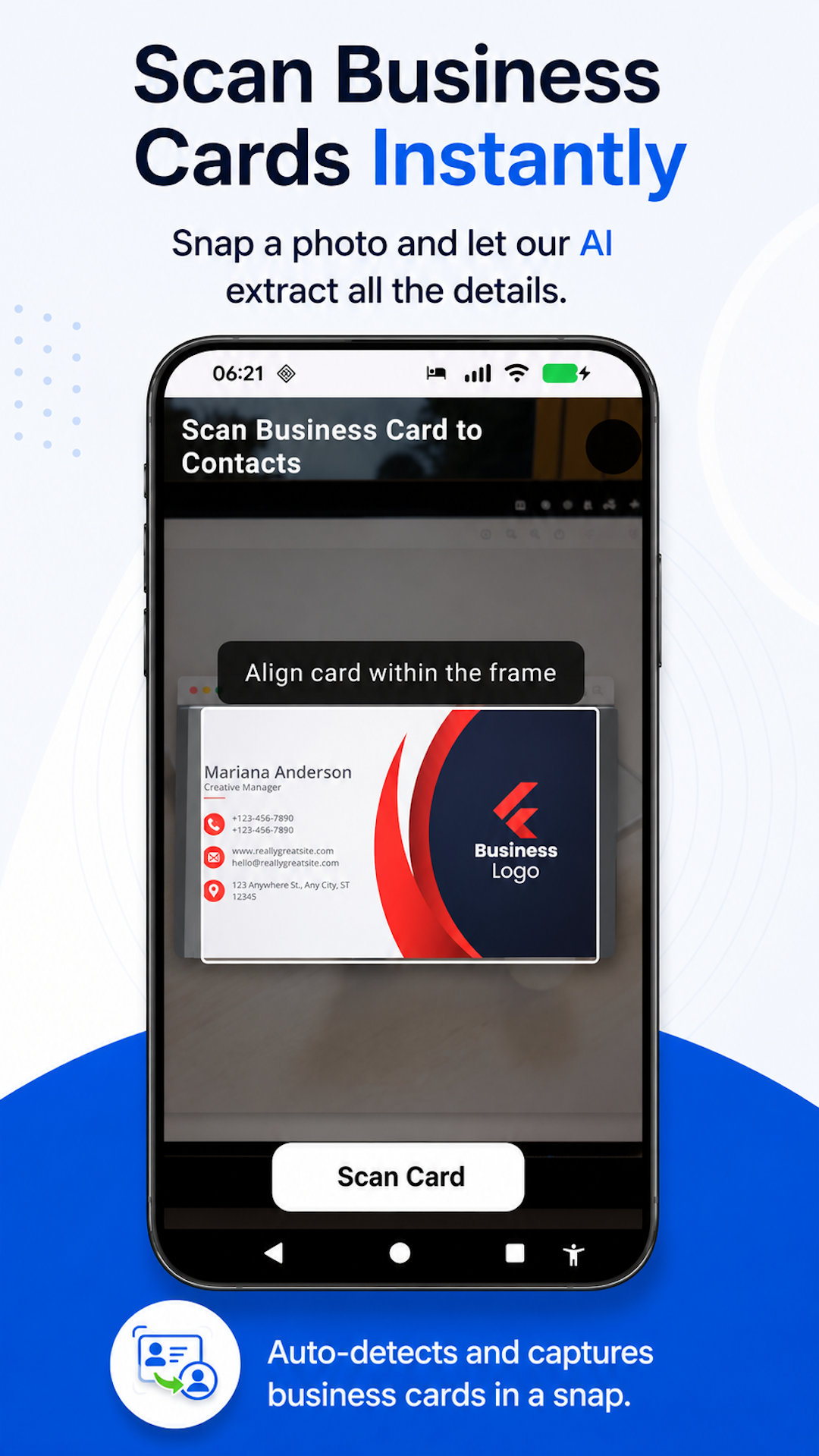
Take a photo
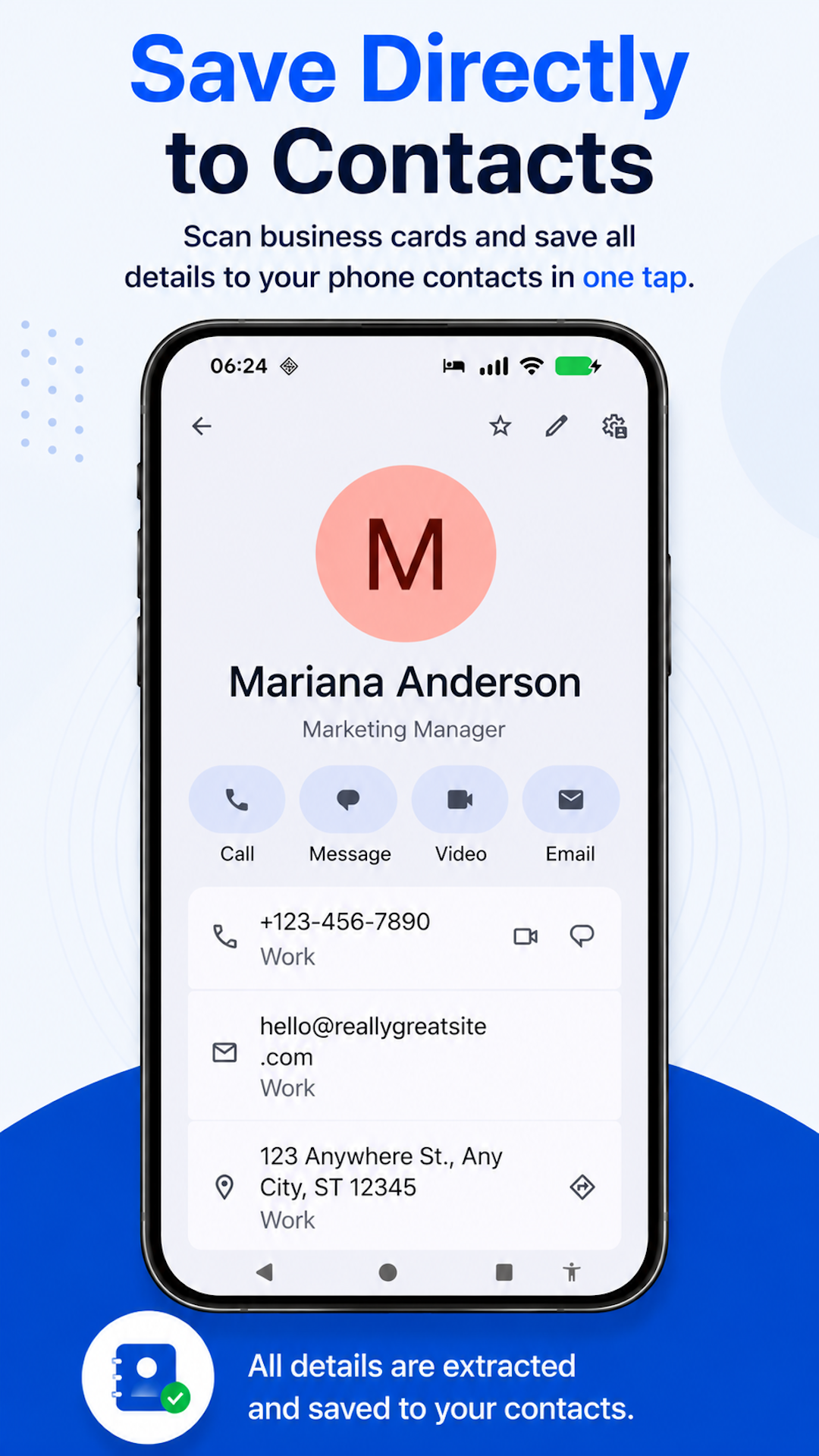
AI creates the contact
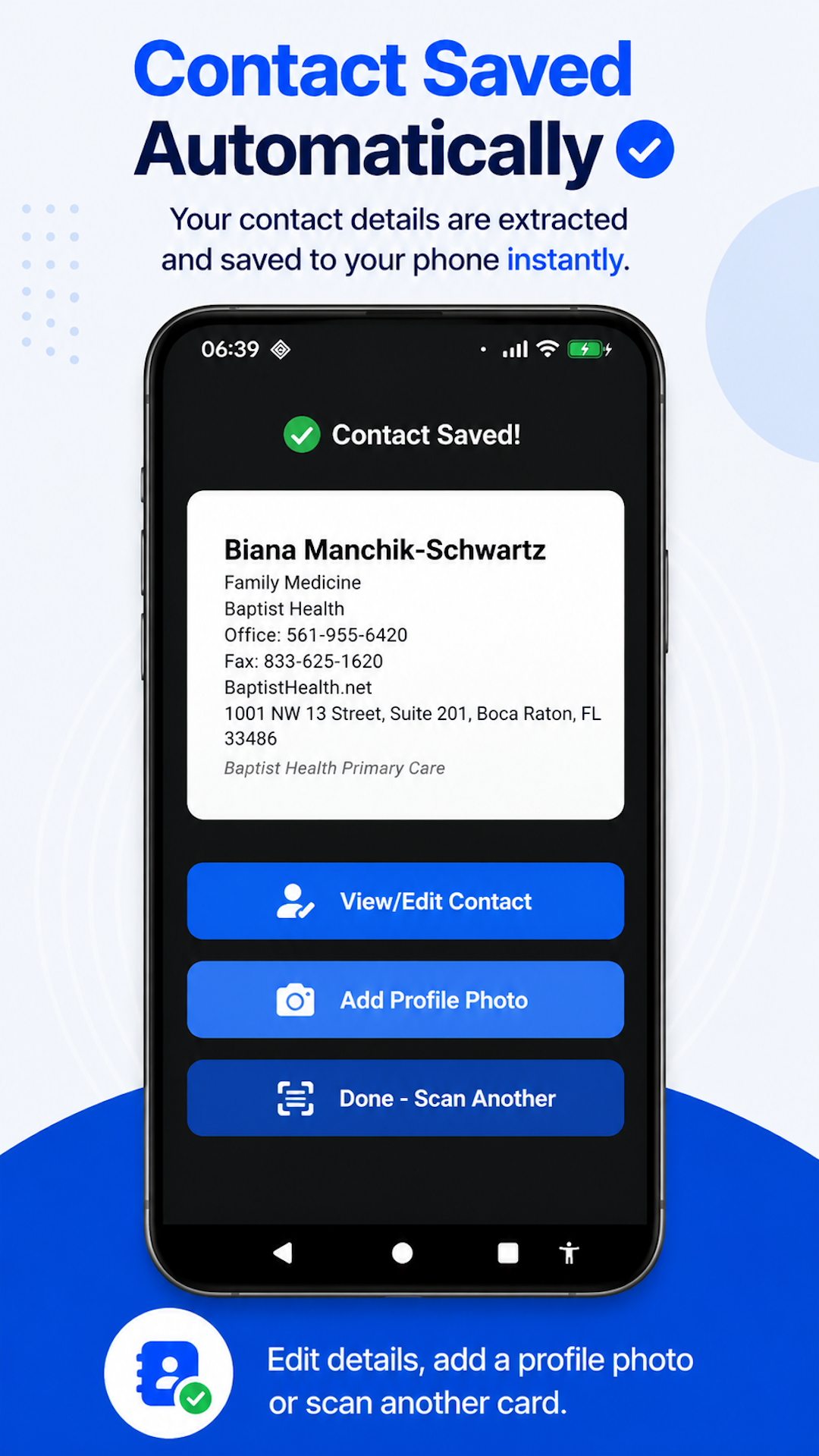
Edit or add photo anytime
- No manual typing
- Saves to Google Contacts
- Edit anytime after saving
- Built for in-person networking
Scan Business Cards to Google Contacts
Business Card Scanner to Contacts makes the business card workflow simple. Take a photo of a card, and the app reads the contact details and saves the person through your Android contacts, where they can appear in Google Contacts through your normal sync settings.
No typing. No spreadsheet. No CRM. No separate app-only address book. No exporting contacts from one app and importing them somewhere else.
- Take a photo of a business card
- Details are extracted automatically
- Saved to your Android address book
- Edit the contact later if needed
- Add a profile photo if you want
How Business Card Scanner to Contacts Works
A simple photo-to-contact workflow for real-world networking.
Take a photo
Open the app and snap a photo of the paper business card.
AI creates the contact automatically
The app extracts common business card details and creates a real contact in your Android address book.
Edit or add a photo anytime
After the contact is saved, you can edit details, add a profile photo, or scan another card.
No Contact Vault. No Account. No Subscription.
Business Card Scanner to Contacts is not trying to become your new contact system. It is a fast bridge between paper business cards and the contacts you already use.
- Stores contacts inside a separate app
- May require an account
- May require a subscription
- Often built around exports or CRM workflows
- Creates another database to manage
- Saves contacts to your Android address book
- No account required
- No subscription
- No proprietary contact database
- No complicated export process
Ready to Turn Business Cards Into Phone Contacts?
Take a photo of a card and save the person as a real contact — no typing, account, subscription, or export process.
AI Business Card Scanner for Android
Business Card Scanner to Contacts uses AI to extract the details people usually print on business cards, then saves them as usable phone contacts.
Business cards often include more than one phone number or email address. After the contact is saved, you can edit details if anything needs correction.
Your Contacts Belong in Your Phone
A scanned business card should become a real contact, not another record trapped inside another app. Business Card Scanner to Contacts saves to your Android address book, where contacts already live.
- Call, text, or email someone right after scanning
- Find people through your normal Android contact search
- Use saved contacts with your phone, messaging, email, and calendar apps
- Keep everyone in your existing address book
- Avoid exports, spreadsheets, and app-only databases
Built for People Who Still Get Paper Business Cards
Some networking still happens face to face. Business Card Scanner Phone is built for people who receive paper business cards and want those contacts saved before the cards get lost.
Salespeople
Save prospects after meetings, events, trade shows, and walk-ins.
Recruiters
Capture candidate, employer, and hiring manager details quickly.
Real estate agents
Save buyers, sellers, vendors, lenders, and local contacts.
Consultants
Keep client, referral, and partner contacts in your phone.
Conference attendees
Scan cards before they disappear into a bag, wallet, or desk drawer.
Small business owners
Save customers, suppliers, contractors, and neighborhood business contacts.
What Is the Easiest Way to Save a Business Card to Google Contacts?
The easiest way to save a business card to Google Contacts is to use an AI business card scanner for Android. Take a photo of the card, let the app extract the contact details, and save the person to your Android address book — where the contact can appear in Google Contacts through your normal sync settings.
Business Card Scanner Guides
Looking for a specific way to scan and save business cards? These guides cover the most common workflows people search for.
Scan Business Cards to Google Contacts
Learn how Business Card Scanner to Contacts saves scanned cards through Android contacts, where they can appear in Google Contacts through normal sync settings.
Read the Google Contacts guide →Business Card Scanner With No Account
Use a business card scanner without creating an account, signing in, or managing another contact system.
See the no-account scanner →Business Card Scanner With No Subscription
Scan business cards without adding another recurring software subscription.
See the no-subscription scanner →Save Business Cards to Phone Contacts
Turn paper business cards into real contacts in your Android address book.
Save cards to phone contacts →Business Card Scanner With No CRM
Skip CRM setup, lead databases, exports, and pipelines when you just want someone saved in your phone.
See the no-CRM scanner →Frequently Asked Questions
- Does Business Card Scanner to Contacts save to Google Contacts?
- Yes. The app saves scanned business cards through your Android contacts, where they can appear in Google Contacts through your normal sync settings.
- Can I edit the contact after scanning?
- Yes. After the business card is saved as a contact, you can edit details or add a profile photo.
- Do I need an account?
- No. Business Card Scanner to Contacts does not require an account.
- Is there a subscription?
- No. Business Card Scanner to Contacts does not require a subscription.
- Does it create a separate contact vault?
- No. The app saves to your phone contacts instead of trapping them inside a separate proprietary database.
- What details can it extract from a business card?
- It can extract common business card details such as name, company, job title, phone numbers, email addresses, websites, and street addresses.
- Is this a CRM?
- No. Business Card Scanner to Contacts is not a CRM. It is built for scanning paper business cards and saving them as real contacts.
- Who is this app for?
- It is designed for salespeople, recruiters, real estate agents, consultants, conference attendees, small business owners, and anyone who still receives paper business cards.
Take a Photo. Save the Contact. Move On.
The next time someone hands you a card, do not let it disappear into a wallet, desk drawer, or photo roll. Turn paper business cards into real phone contacts without an account, subscription, contact vault, or export process.
Built for Android. No account required. No subscription.